
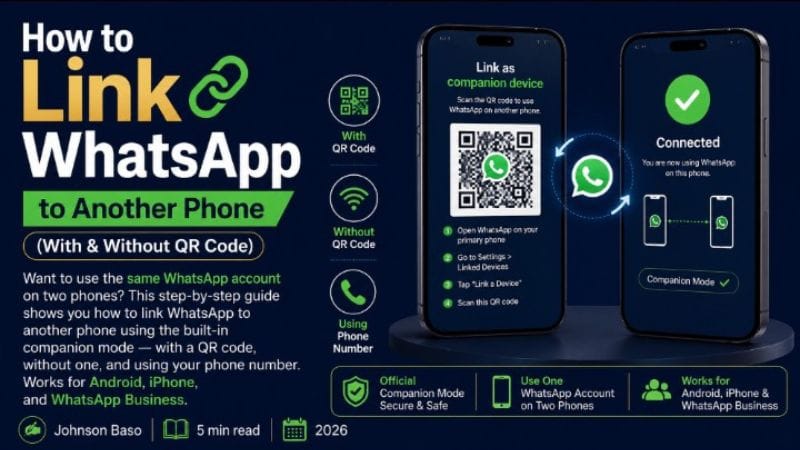
How to Link WhatsApp to Another Phone (2026 Step-by-Step Guide)
Use the same WhatsApp account on two phones at the same time — the official, safe method for Android and iPhone without logging out.
✅ 2026 Official WhatsApp Notes
- Official method: This guide uses WhatsApp's built-in Linked Devices feature. No third-party apps are needed.
- Device Limit: You can link up to four additional devices to your primary phone.
- Independence: Linked devices can continue to send and receive messages even when the primary phone is not continuously online.
- Inactivity: WhatsApp may log out linked devices if the primary phone remains inactive for a prolonged period.
- Source: WhatsApp's official Help Center .
📌 Quick Answer
Yes, you can use WhatsApp on two phones. The official way is to use the Linked Devices feature. On the second phone, open WhatsApp, select "Link as companion device", and scan the QR code with your primary phone. Both phones can then use the same WhatsApp account.
What Does "Linking" Mean? Primary vs. Companion Phone
"Linking" connects a second phone to your existing WhatsApp account as a companion device. It's not a new account.
- Primary Phone: This is your main device—the one with your WhatsApp account.
- Companion Phone: This is the second phone you connect. It can be used to send and receive messages using the same account.
It's similar to using WhatsApp on a computer, but you're linking another phone instead. The official Linked Devices feature is the recommended method rather than using third-party cloning applications.
Before You Start: Requirements
- Primary Phone: Android or iPhone with an active WhatsApp account.
- Companion Phone: Another Android or iPhone with WhatsApp installed.
- Internet Connection: Both phones should have a stable Wi-Fi or mobile data connection during setup.
- Working Camera: Needed on your primary phone to scan the QR code.
- Access to Primary Phone: You'll need to authorize the linking process.
Step-by-Step: How to Link WhatsApp to Another Phone
Step 1: Update WhatsApp on Both Phones
- Open the Google Play Store or App Store.
- Search for WhatsApp.
- Tap Update if an update is available.
Step 2: Prepare Your Second (Companion) Phone
- Install and open WhatsApp.
- Tap "Agree and Continue".
- Do NOT enter your phone number when prompted.
- Open the menu and select "Link as companion device".
A QR code should now appear on the companion phone.
Step 3: Open Linked Devices on Your Primary Phone
- Open WhatsApp on your primary phone.
- Android: Menu (⋮) → Linked devices.
- iPhone: Settings → Linked devices.
- Verify your identity if WhatsApp asks you to do so.
Step 4: Link the Second Phone by Scanning the QR Code
- Tap "Link a device".
- Your primary phone's camera will open.
- Scan the QR code displayed on the companion phone.
- Wait for the chat synchronization to complete.
Once synchronization finishes, you can use WhatsApp on both phones.
What Happens to Your Chats and Settings?
- Chats are synced, not deleted. Your existing account remains active on the primary phone.
- Backups remain associated with the primary phone.
- Some account-management functions remain tied to the primary phone.
WhatsApp may not display every older message on a newly linked device. The amount of history available can depend on the device and WhatsApp version.
Using WhatsApp on Two Phones: What Works and What's Limited
What Works on Both Phones
- Sending and receiving messages.
- Participating in individual and group chats.
- Receiving notifications for new messages.
What May Be Limited on the Companion Phone
- Backups: Some backup management remains on the primary phone.
- Account Changes: Some account-level settings remain primary-device functions.
- Feature availability: Certain features can vary depending on the WhatsApp version and device.
WhatsApp Business on a Second Phone
The Linked Devices feature can also be useful for WhatsApp Business. A business owner can connect another phone so that a trusted assistant or team member can help manage customer conversations.
Practical Uses in Nigeria
- Customer Support: A business owner and assistant can respond to customers from connected devices.
- Sales Representatives: A small team can help manage customer conversations.
- Order Management: A business owner can handle customer orders from another device while the main business phone remains elsewhere.
⚠️ Business Feature Note: Some WhatsApp Business features may behave differently on linked devices. Test important business workflows before depending on them.
Want to Use WhatsApp More Effectively for Sales?
Linking WhatsApp to another phone is useful when you need to manage conversations across devices. But if your bigger goal is to turn those WhatsApp conversations into customers, you also need a proper sales process.
WhatsApp Sales Blueprint 2.0 is an external training option focused on using WhatsApp more strategically for selling and generating customers.
Learn About WhatsApp Sales Blueprint 2.0Affiliate disclosure: This is an affiliate link. If you purchase through the link, ClickStartNG may earn a commission at no additional cost to you.
Safety & Security: Is It Safe?
Yes, when you use WhatsApp's official Linked Devices feature. The bigger risk comes from allowing someone else to link their device to your account.
⚠️ Avoid WhatsApp Linking Scams
Never scan a QR code unless it is displayed on a device you personally control and intentionally want to link. Do not follow instructions from strangers asking you to scan a WhatsApp QR code.
How to Stay Safe
- ✅ Only link devices you own or trust.
- ✅ Regularly check Linked Devices.
- ✅ Remove devices you don't recognize.
- ✅ Use a screen lock on your phones.
- ✅ Enable WhatsApp two-step verification.
Troubleshooting Common Problems
QR code won't scan?
- Clean the camera lens.
- Increase the brightness of the companion phone.
- Restart WhatsApp on both phones.
- Try the linking process again.
Can't find "Link as companion device"?
- Update WhatsApp on both phones.
- Return to the phone-number screen on the second phone.
- Look for the companion-device option before entering a number.
Linked phone not receiving messages?
- Check the internet connection.
- Confirm the phone still appears under Linked Devices.
- Unlink and reconnect the device if necessary.
How to unlink a device
- Open WhatsApp on the primary phone.
- Go to Linked Devices.
- Select the device you want to remove.
- Tap Log out.
Common Myths to Avoid
- Myth: "I must log out from my main phone." — False. You can add the second phone as a companion device.
- Myth: "This will delete my chats." — False. Linking does not require deleting your existing account.
- Myth: "I need a cloning app." — False. The official Linked Devices feature does not require one.
- Myth: "WhatsApp will ban me for using two phones." — Using WhatsApp's official companion-device feature is supported.
📄 Turn WhatsApp Chats into Customers
Now that you know how to link your devices, learn how to use WhatsApp to grow your business. Get our free playbook with the 3-Post Status Formula and follow-up scripts that help turn conversations into sales.
GET THE FREE WHATSAPP SALES PLAYBOOK No payment requiredFrequently Asked Questions
Can I use WhatsApp on two phones at the same time?
Yes. Use the official Linked Devices feature to connect a second phone as a companion device.
Will linking WhatsApp to another phone delete my chats?
No. Linking another device does not require you to delete your existing WhatsApp account.
Do I need to log out from my main phone?
No. The second phone is added as a companion device while the primary phone remains connected to your account.
Does this work on both Android and iPhone?
Yes. WhatsApp supports linking compatible Android and iPhone devices through Linked Devices.
How many devices can I link to one WhatsApp account?
WhatsApp currently allows up to four additional devices to be linked to one account.
Can I link WhatsApp without a QR code?
WhatsApp offers other linking methods in some situations, but the QR code method is the straightforward approach for linking a companion phone.
Why is my linked device being logged out?
Linked devices can be logged out if the primary phone remains inactive for an extended period. Open WhatsApp on your primary phone regularly.
Can I use WhatsApp Business on a second phone?
Yes. WhatsApp Business can use linked devices, making it useful for businesses that need to manage customer conversations across devices.
Turn Your WhatsApp Into a Sales Engine
Get the complete system with templates, conversation scripts, follow-up sequences, and AI prompts. Build a repeatable sales process for turning WhatsApp conversations into customers.