
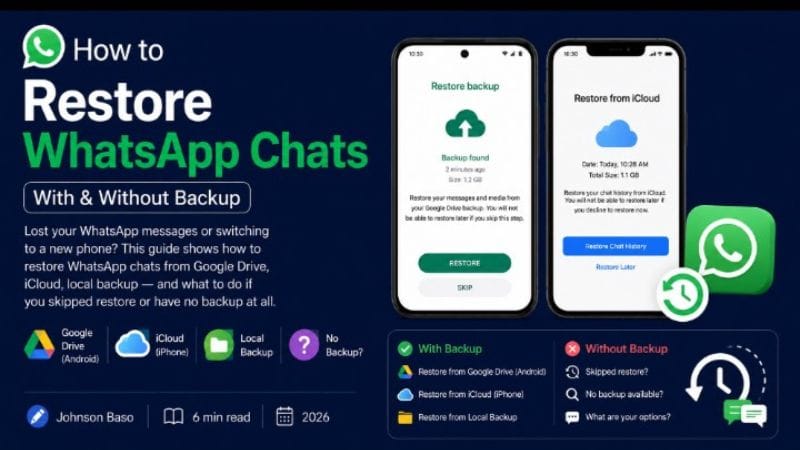
How to Restore WhatsApp Chats (With & Without Backup)
Lost your WhatsApp messages or switching to a new phone? This guide shows how to restore WhatsApp chats from Google Drive, iCloud, local backup — and what to do if you skipped restore or have no backup at all.
✅ Quick Answer: How to Restore WhatsApp Chats
Android: Reinstall WhatsApp → Verify number → Tap "Restore" when prompted (from Google Drive). iPhone: Reinstall WhatsApp → Verify number → Tap "Restore Chat History" (from iCloud). Make sure you're logged into the same Google or Apple account used for the backup.
Method 1: Restore from Google Drive (Android)
- Ensure you're logged into the same Google account that was used for the WhatsApp backup.
- Uninstall and reinstall WhatsApp from the Play Store.
- Open WhatsApp and verify your phone number.
- WhatsApp will detect your Google Drive backup and ask: "Restore chat history?"
- Tap "Restore." Wait for the process to complete.
- Tap "Next" — your chats should now be restored.
Method 2: Restore from iCloud (iPhone)
- Go to Settings → iCloud and ensure WhatsApp is toggled ON.
- Check your iCloud backup: WhatsApp → Settings → Chats → Chat Backup to see the last backup date.
- Uninstall and reinstall WhatsApp.
- Verify your number and tap "Restore Chat History."
Method 3: Restore Without Backup (If You Skipped It)
If you skipped the initial restore but your backup still exists, you can trigger it again:
- Go to Settings → Chats → Chat Backup.
- Check the date of the last backup. If it's recent, uninstall and reinstall WhatsApp.
- This time, don't skip the restore prompt.
Method 4: Restore from Local Backup (Android Only)
WhatsApp automatically saves local backups to your phone every night at 2 a.m. These are stored in your phone's file manager.
- Open your phone's File Manager.
- Navigate to Internal Storage → Android → media → com.whatsapp → WhatsApp → Databases.
- Find the file named msgstore‑YYYY‑MM‑DD.1.db.crypt14.
- Rename it to msgstore.db.crypt14.
- Uninstall and reinstall WhatsApp. When prompted, restore from this local file.
⚠️ Local backups only contain messages up to the backup date. Any messages received after that will not be included.
"I switched from Android to iPhone and panicked when my chats didn't transfer. Using the Google Drive to iCloud method, I got all my messages back in under 10 minutes."
— Grace U., AbujaFrequently Asked Questions
Unfortunately, no. WhatsApp doesn't store your messages on its servers. If no backup exists (neither cloud nor local), the chats are permanently lost.
This is trickier. The official method is to use the "Move to iOS" app when setting up a new iPhone, which transfers WhatsApp data. After initial setup, cross‑platform restore isn't directly supported without third‑party tools.
Ensure a stable Wi‑Fi connection. Large backups can take time. If it's stuck for over 30 minutes, force‑close WhatsApp and reopen it. Verify you're using the correct Google/iCloud account.
Explore More WhatsApp Guides & Online Income Tips
Now that your chats are safe, discover how Nigerians earn real money through WhatsApp status, TV channels, and affiliate marketing.
Ready to build your website? See packages and get a free mockup →