
How to Log Out on WhatsApp (Android, iPhone & Business)
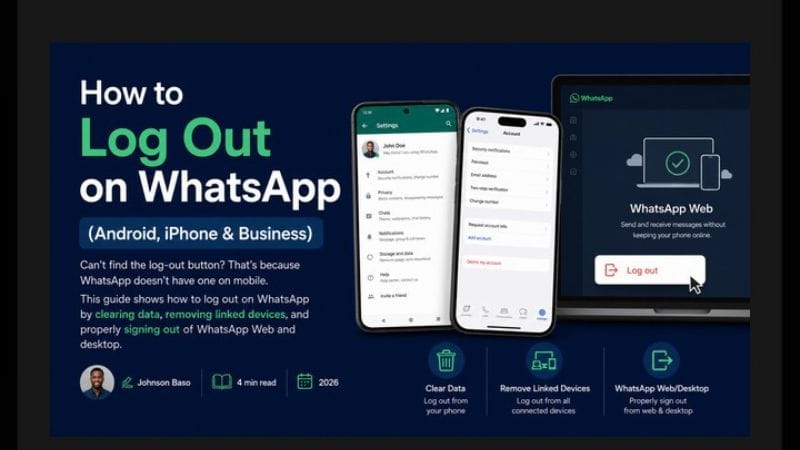
Can't find the log‑out button? That's because WhatsApp doesn't have one on mobile. This guide shows how to log out on WhatsApp by clearing data, removing linked devices, and properly signing out of WhatsApp Web and desktop.
✅ Quick Answer: How to Log Out on WhatsApp
WhatsApp does not have a built‑in log‑out button on mobile. To log out, go to Settings → Account → Delete Account (permanent) or clear the app data in your phone's settings (temporary). On WhatsApp Web/Desktop, click the three dots (⋮) → Log out.
Why Doesn't WhatsApp Have a Log‑Out Button?
WhatsApp is designed to keep you connected, like your phone's SMS app. It stays logged in so you never miss messages. However, there are workarounds.
How to Log Out on WhatsApp for Android
- Go to Settings → Apps → WhatsApp.
- Tap Storage → Clear Data.
- Open WhatsApp — you'll be prompted to verify your number again. This effectively logs you out.
⚠️ Clearing data removes your chats from this device. Make sure you have a recent backup before doing this.
How to Log Out on WhatsApp for iPhone
iPhone doesn't have a "Clear Data" option. Instead:
- Go to Settings → General → iPhone Storage → WhatsApp.
- Tap Delete App.
- Reinstall WhatsApp. You'll need to verify your number again — effectively logging out and back in.
How to Log Out of WhatsApp Web or Desktop
This one is simple — WhatsApp Web and Desktop actually have a log‑out button:
- Click the three dots (⋮) above the chat list.
- Select "Log out."
You can also log out remotely from your phone: Settings → Linked Devices → tap the device → Log Out.
How to Log Out of WhatsApp Business
The process is identical to regular WhatsApp. Clear app data on Android, or delete and reinstall on iPhone. WhatsApp Business also has the same Linked Devices menu for remote logout.
🧾 Quick Summary
- Android: Clear app data.
- iPhone: Delete and reinstall the app.
- WhatsApp Web/Desktop: Click the three dots → Log out.
- Remote logout: Settings → Linked Devices → Log out.
Frequently Asked Questions
WhatsApp doesn't include a log‑out button on mobile by design. The app is meant to stay connected like SMS.
No. Your account still exists. Clearing data only removes the app's data from your phone. You can log back in by verifying your number.
Yes, for linked devices. Go to WhatsApp on your phone → Settings → Linked Devices → tap the device → Log Out.
Explore More WhatsApp Guides & Online Income Tips
Learn how thousands of Nigerians are earning real money through WhatsApp status, TV channels, and affiliate marketing.